Deploy to cPanel
cPanel is the most popular control panel in shared hosting. Please make sure your cPanel already support NodeJS.
Database
We assume that you already setup the database correctly. If not, please refer to this docs Restore Database.
Using default database with SQLite
You can skip to use database engine, like MySQL, MariaDB, PostgreSQL, etc.
Just using default database SQLite, it's enough for small website.
Preparation
- Edit the
config.jsfile, then change this part with your domain or subdomain, in this case I'll using my subdomainsso.sail-it.id.
config.js
 // WEBSITE
  // This is the base url, used for template engine
  // Change with your domain without trailing slash.
  // Example : https://yourdomain.com
  baseUrl: 'https://sso.sail-it.id',
  baseAssetsUrl: 'https://sso.sail-it.id',
  siteName: 'OpenSSO',
- Then save it.
- Now select all files then compressed to zip, give it name
app.zip. - Done.
node_modules
You are able to install node_modules locally then zip all and upload it to your cPanel.
But npm install from NodeJS App cPanel are recommended.
Upload to hosting
- Go to your
cPaneland look forFile Manager. - Create new folder name
appon root.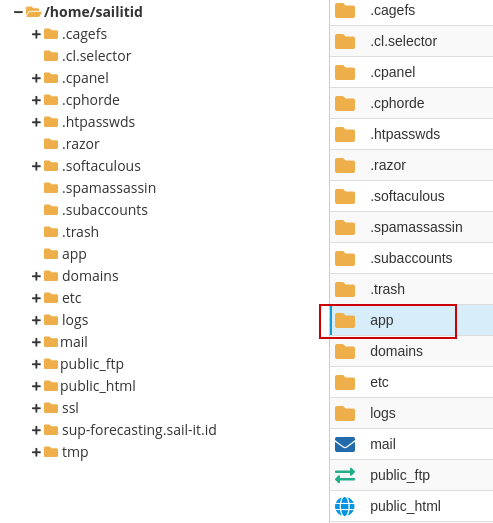
- Go inside app folder, then click
Uploadbutton at top left.
Then you will being redirected to the new page for upload, now choose your zip file and start upload it.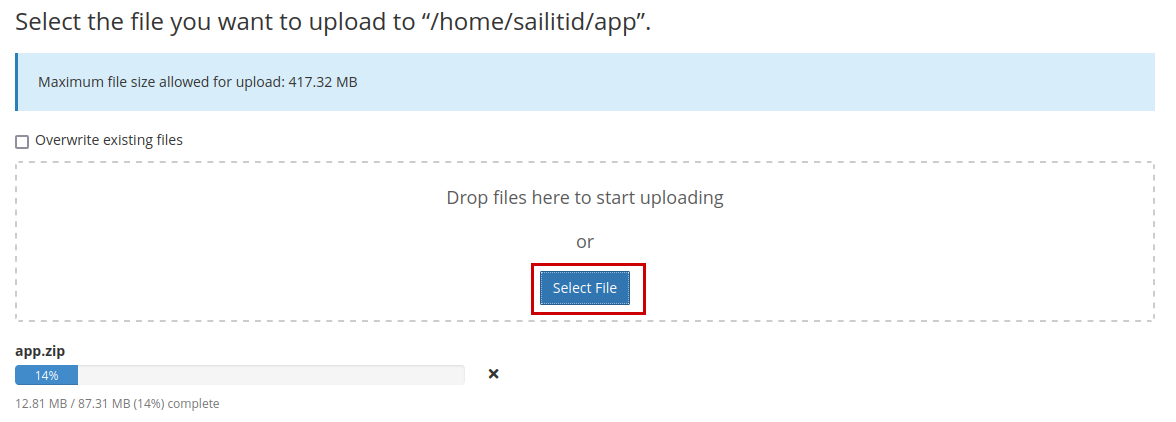
When the upload complete, you can close it page and back toFile Manager. - Click
Reloadbutton then you will see yourapp.zipfile on there.
Now right click on that file, then chooseExtract.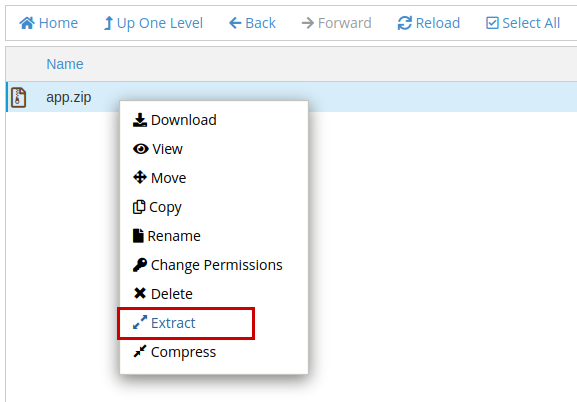
Just type/appon it, then clickExtract Files.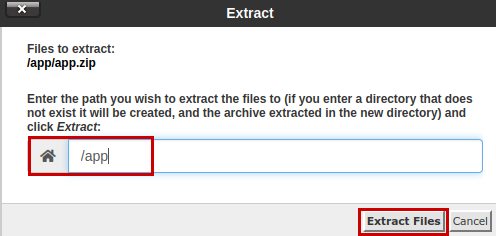
When the extract successfuly, it will shown like this below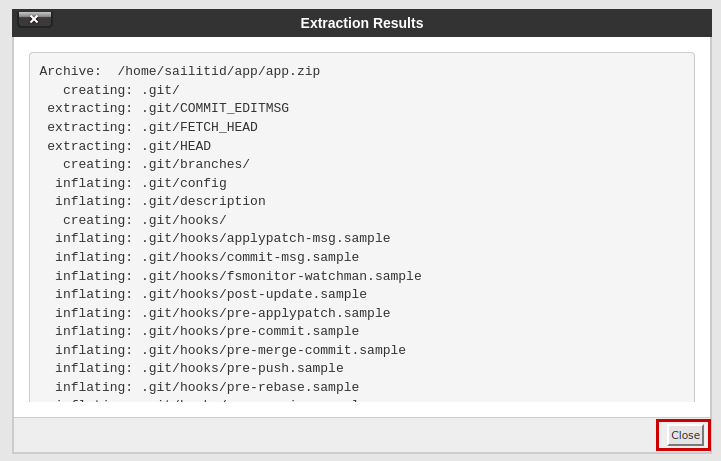
Just clickCloseand clickReloadbutton again. Then you will see app files already extracted.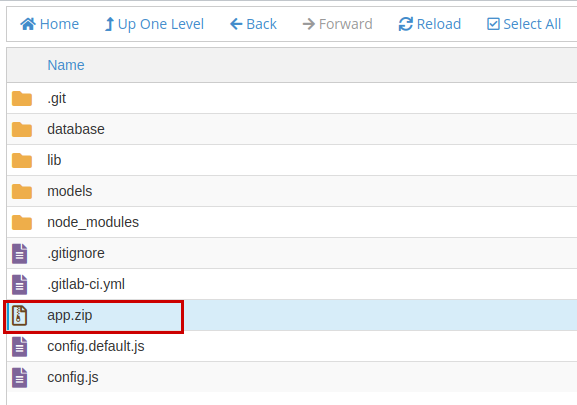
- Done, you can close the
File Managerpage.
Setup NodeJS App
- Go to your
cPanelagain. - Look for
Setup NodeJS Appthen clickCREATE APPLICATIONbutton.
- Configuration should look like this below, then click
CREATEbutton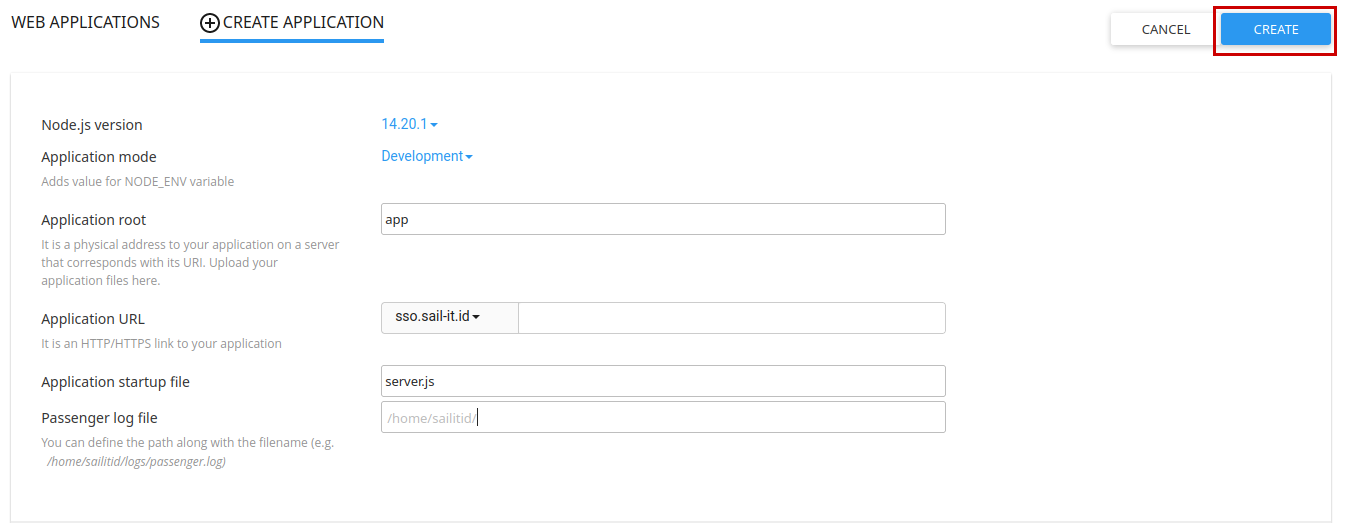
- Then click
Start App, if there is no error, the button will display like this below
- Done, now try to visit the website.
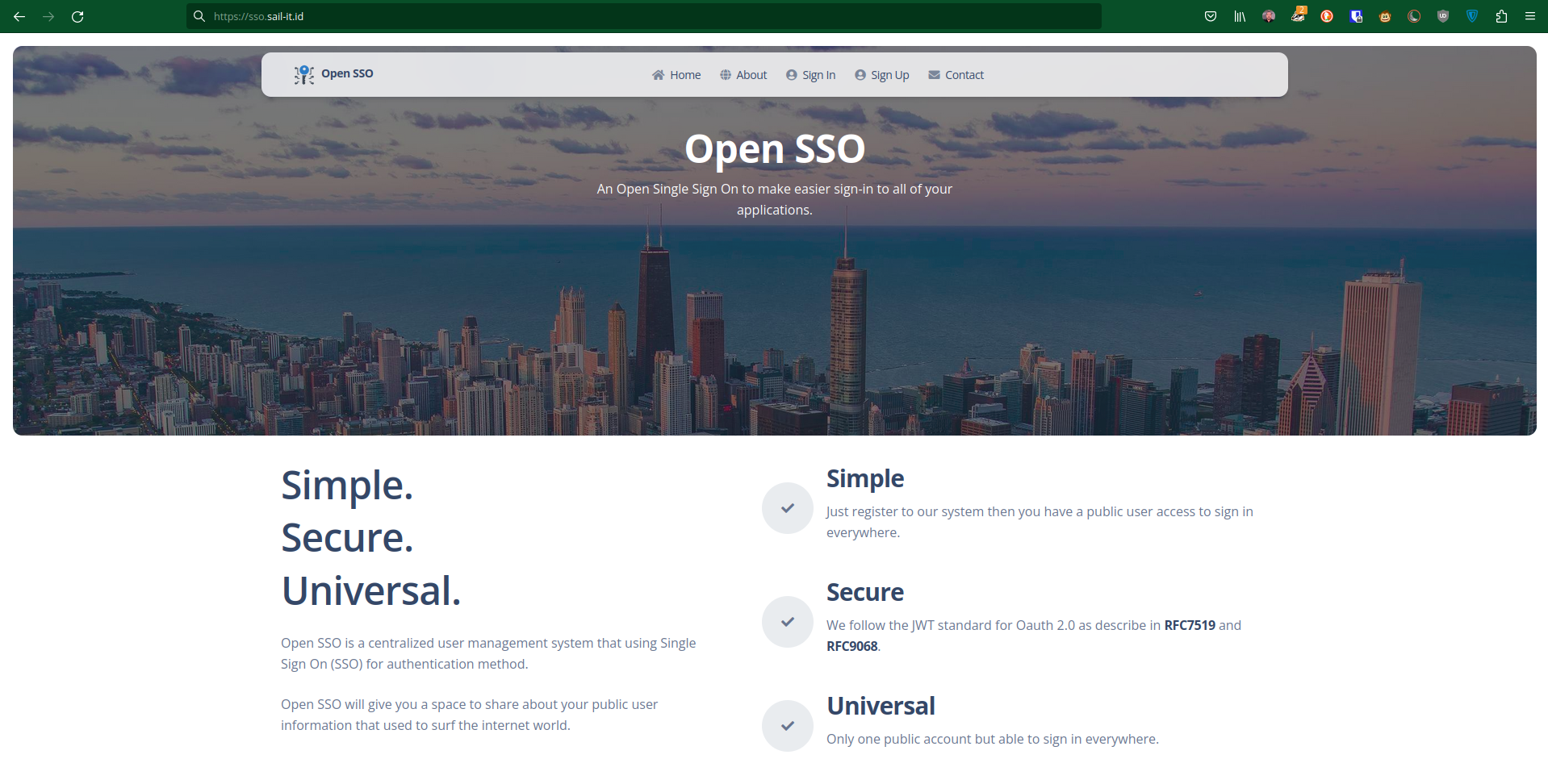
Troubleshoot
If you found a blank white screen, then it might be:
- Some of hosting provider is having issue with SQLite support for NodeJS.
- or might be the library was broken or permissions issue.
The solution is:
- You have to choose other database except
SQLite, i.eMySQLorPostgreSQL. - Remove library sqlite3 from package by running
npm remove sqlite3. - More details configuration, please read here >> Configuration Database.
Create Admin User
If everything is running well, then let's create a first user as Admin.
- Just go to
Sign Uppage. - Fill the form and click
Sign Upbutton.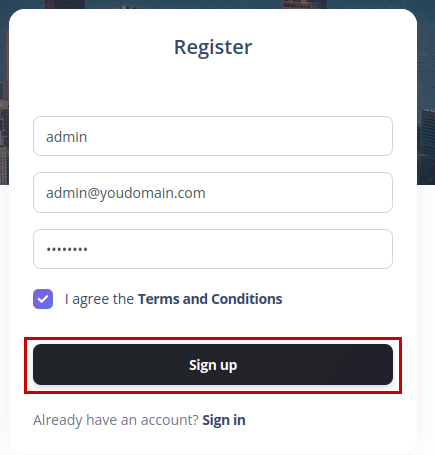
- Done, the first user will get admin user automatically.