Sign-in With Microsoft
OpenSSO support Sign in with Microsoft Entra ID. If you want to use this feature, You have to activate this from config.js.
config.js
// ---
oauth: {
  // ---
  entra: {
    enable: false,
    clientId: 'xxxxxxxx-xxxx-xxxx-xxxx-xxxxxxxxxxxx',
    clientSecret: 'xxxxx~xx~xxxxxxxxxx~x_xxxxxxxxxxxxxxxxx',
    redirectUri: 'https://yourdomain.com/sign-in',
    tenantId: 'xxxxxxxx-xxxx-xxxx-xxxx-xxxxxxxxxxx'
  }
}
// ---
Description:
- entra.enable if set to true, then this feature will be activated.
- entra.clientId is the client id generated from Azure.
- entra.clientSecret is the client secret generated Azure.
- entra.redirectUri is the redirect/callback URI.
- entra.tenantId is the client secret generated Azure.
How to Get tenantId, clientId and clientSecret
- Register Your App in Microsoft Entra (formerly Azure AD)
- Go to the Microsoft Entra Portal.
- Register a new application.
- Set the redirect URI (e.g., https://yourdomain.com/sign-in). see picture below.
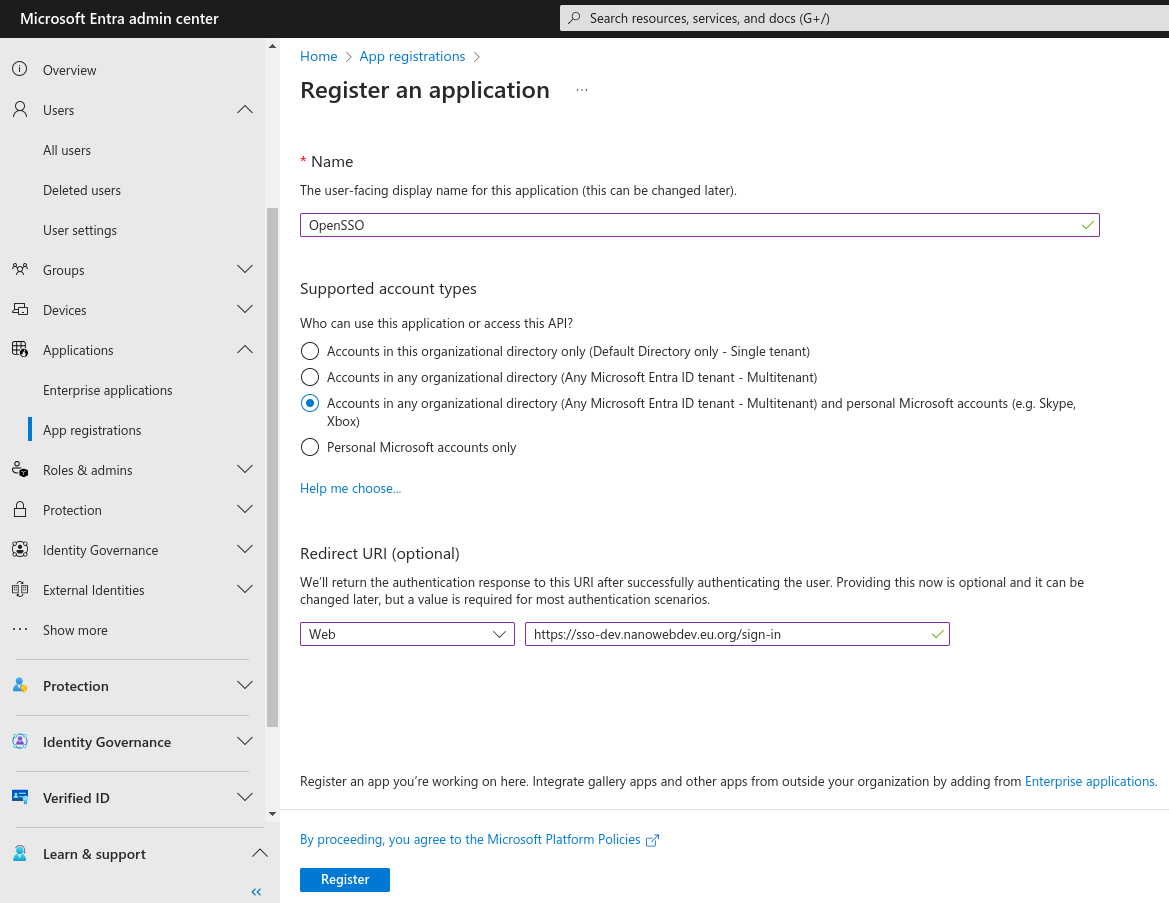
- Click Register, now you will redirected to your app.
- At the top right there is client credentials, click it to create new client secret.
- Click New Client Secret. Fill all the fields requirement.
- Now you already have the
tenantId,clientIdandclientSecret. - Last, you have to set your app permissions. see picture below.
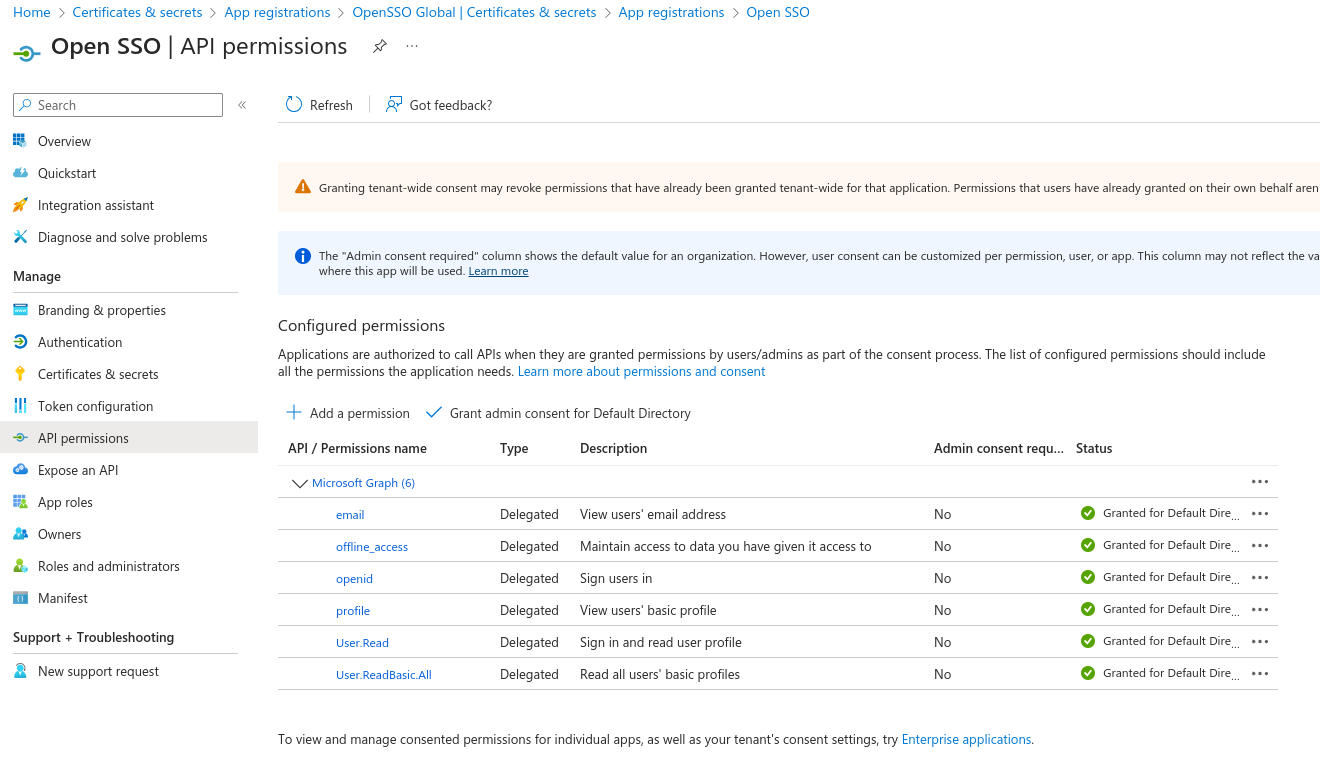
- Done
info
- Microsoft Entra ID is formerly Azure Active Directory.
- Microsoft Oauth is required an URL with SSL.